¶ User Authentication and Registration
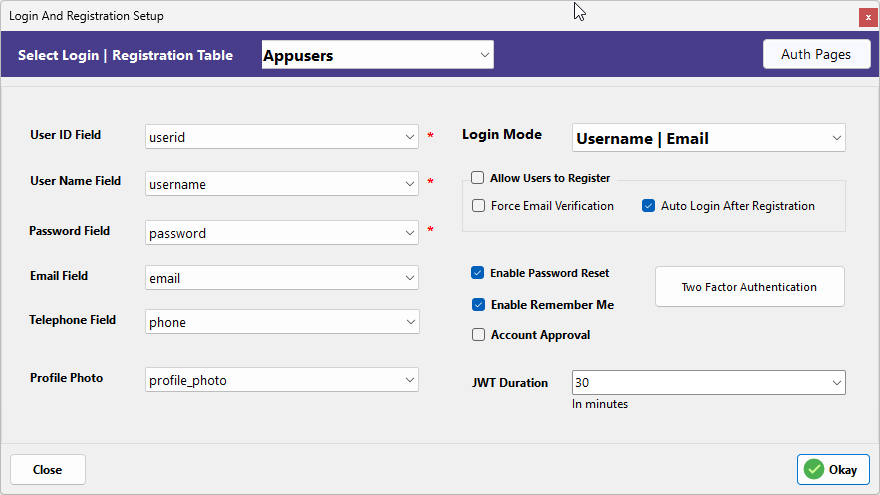
Security is a cornerstone of professional web application development. In today's digital landscape, ensuring that only authorized users can access sensitive data is critical for protecting both your business and your users' privacy. RadSystems Studio simplifies this complex process by utilizing industry-standard authentication methods to implement fully functional Registration and Login screens - all without requiring you to write a single line of code.
¶ Configuring the Authentication Interface
The Login and Registration Setup window allows you to map your database fields to the application's security logic and customize the user experience.
¶ User Data Mapping
-
Select Login | Registration Table: Use this dropdown to select the specific database table that stores your user credentials (e.g., Appusers).
-
User ID Field: Select the primary key field from your table that uniquely identifies each user (e.g., userid).
-
User Name Field: Choose the field used for the login identity, such as a username or display name.
-
Password Field: Select the field where user passwords are stored. RadSystems Studio will handle the encryption and verification logic automatically.
-
Email Field: Map this to the column storing user email addresses, which is essential for password resets and verification.
-
Telephone Field: Select the field for storing phone numbers if you intend to use mobile-based verification or contact features.
-
Profile Photo: Map this to the field that stores the path or filename for user avatars to personalize the dashboard.
¶ Login and Security Modes
-
Login Mode: Choose how users identify themselves during login. You can set this to Username, Email, or a flexible Username | Email combination.
-
Enable Password Reset: When checked, the application generates a "Forgot Password" workflow, allowing users to securely reset their credentials via email.
-
Enable Remember Me: This adds a checkbox to the login page that allows the browser to maintain the user's session for convenience.
-
JWT Duration: For API-based projects, set the duration (in minutes) for how long a JSON Web Token (JWT) remains valid before the user is required to log in again. The default is typically 30 minutes.
¶ Registration Workflow
-
Allow Users to Register: Check this to enable the public registration page for your application.
-
Force Email Verification: If enabled, new users must click a link sent to their email before their account becomes active.
-
Auto Login After Registration: When enabled, the user is immediately logged into the application upon successful account creation.
-
Account Approval: Use this if you want an administrator to manually approve new accounts before they are granted access.
¶ Two-Factor Authentication (2FA)
Two-Factor Authentication (2FA) has become an industry standard in modern web applications. It adds an extra layer of security by requiring a second form of identification—beyond just a password—to verify the user's identity. This significantly reduces the risk of unauthorized access due to compromised credentials.
RadSystems Studio makes the implementation of this advanced security feature extremely easy. By clicking the Two-Factor Authentication button, you can configure the specific 2FA methods (such as Google Authenticator or Email-based codes) that your application will support.
Click here to read our detailed guide on setting up 2FA.
¶ Managing Access with Auth Pages
The Auth Pages button opens a management interface where you can define the accessibility of individual pages within your application.
Click here to read more about Auth Pages.
Security Note: The current version of RadSystems Studio does not allow you to exclude the Home page from authentication. This restriction is implemented by design for security reasons to ensure the core application dashboard remains protected.