¶ List Page - Properties Overview
 ![[rs-crud-listpage-properties.webp]]
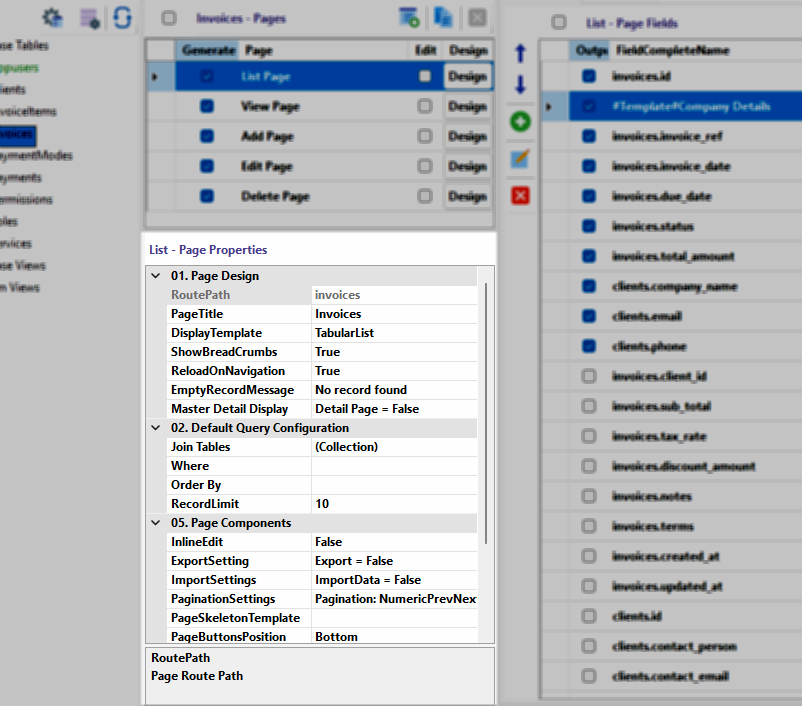
When you select a List Page from your project's page list, the Page Properties panel provides a comprehensive suite of tools to dictate how your data is queried, displayed, and interacted with. These settings allow you to transform a raw database table into a sophisticated, user-friendly data grid.
The properties are organized into logical groups that cover design, data fetching, and functional components.
¶ 01. Page Design
This section controls the fundamental visual and structural metadata of the page.
-
RoutePath: Defines the URL endpoint for the page (e.g.,
invoices). This is ReadOnly and cannot be edited. -
PageTitle: The text displayed in the browser tab and at the top of the page (e.g.,
Invoices). -
DisplayTemplate: Sets the primary layout style, such as TabularList for a standard table layout.
-
ShowBreadCrumbs: A toggle to enable or disable the hierarchical navigation links at the top of the page.
-
ReloadOnNavigation: When enabled, the page will refresh its data every time a user navigates to it via the menu.
-
EmptyRecordMessage: Customizes the text displayed to the user when no data is found (e.g., "No record found").
-
Master Detail Display: Determines if related "Detail" pages should be visible within the master list view.
¶ 02. Default Query Configuration
These settings manage the SQL logic used to retrieve data from your database.
-
Join Tables: Opens a configuration screen to link the primary table with related tables (e.g., joining
invoiceswithclients). -
Where: Allows you to set default filtering conditions (e.g., only show
status = 'active'). -
Order By: Sets the default sorting column and direction (e.g.,
id DESC). -
RecordLimit: Defines how many records are fetched and displayed per page (e.g.,
10).
¶ 05. Page Components
This section enables advanced interactive features for the data list.
-
InlineEdit: When set to True, users can click and edit fields directly within the list in its place without opening a separate edit page.
-
ExportSetting: Configures options for users to download the list as PDF, CSV, Excel, or Word documents.
-
ImportSettings: Enables a button to allow users to bulk-upload records via CSV or Excel files.
-
PaginationSettings: Controls the style and behavior of the page navigation (e.g., NumericPrevNext).
-
PageSkeletonTemplate: Defines the "Loading" state visual (shimmer effect) shown while data is being fetched.
-
PageButtonsPosition: Sets where the action and pagination buttons appear (e.g., Bottom or Top or Both).
¶ 07. Action Buttons
These properties define the behavior of the buttons used to View, Edit, or Delete individual records.
-
ActionButtons: A collection where you can enable, disable, or customize specific buttons like View, Edit, and Delete.
-
ButtonsDisplayStyle: Determines if actions appear as standalone IconButtons or are grouped in a DropDown.
-
ButtonsInFront: If set to True, the action column will appear at the start of the table instead of the end.
-
ButtonRowClass: Allows you to apply custom CSS classes to the action button container (e.g.,
justify-end).