¶ App Page Management
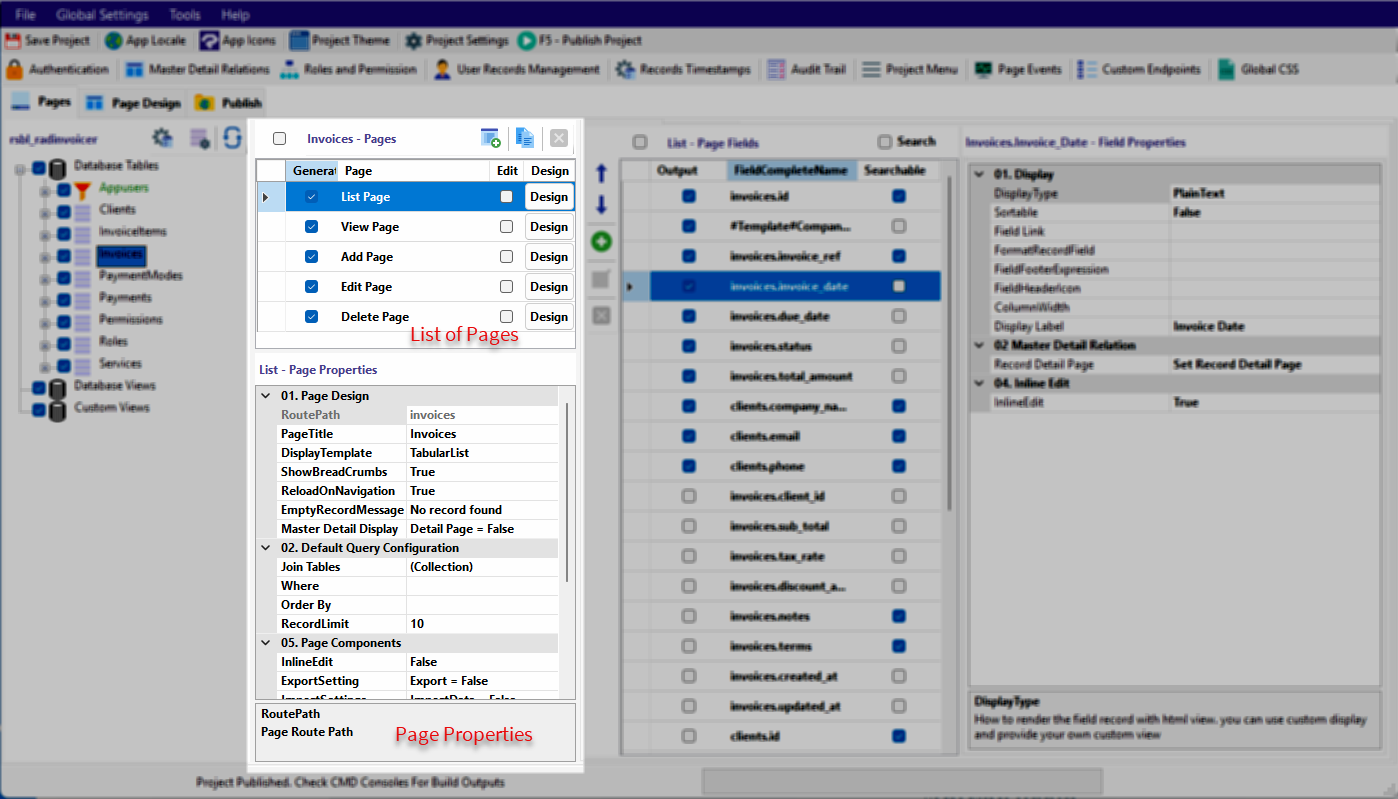
This is where RadSystems Studio truly shines, demonstrating the full power of its no-code engine. By analyzing your database schema, the software automatically scaffolds a complete set of CRUD (Create, Read, Update, Delete) pages for every table. This automation eliminates the need for manual boilerplate coding, allowing you to move from a database schema to a functional web application in seconds.
The Page Management interface is located in the second column of the Pages tab. This column provides a centralized hub for configuring how each specific page in your application behaves and looks.
¶ Interface Structure
The management column is divided into two distinct segments:
¶ 1. List of Pages (Upper Segment)
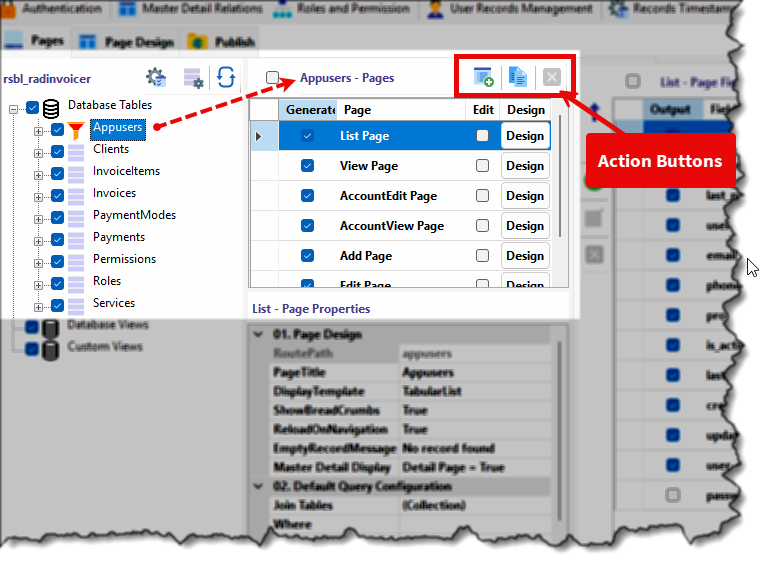
When you select a table or view from the first column (the Database Workspace), its associated pages are loaded here.
-
Selection Logic: Clicking a page in this list (e.g., List Page, View Page) populates its specific configuration in the Page Properties section below and loads its individual fields into the third column.
-
Enable/Disable Pages: The checkbox next to each page name indicates whether that page will be generated. A checkmark means the page is active; unremoving the tick tells RadSystems Studio to skip the generation of that specific page.
¶ Edit Checkbox (Code Mode):
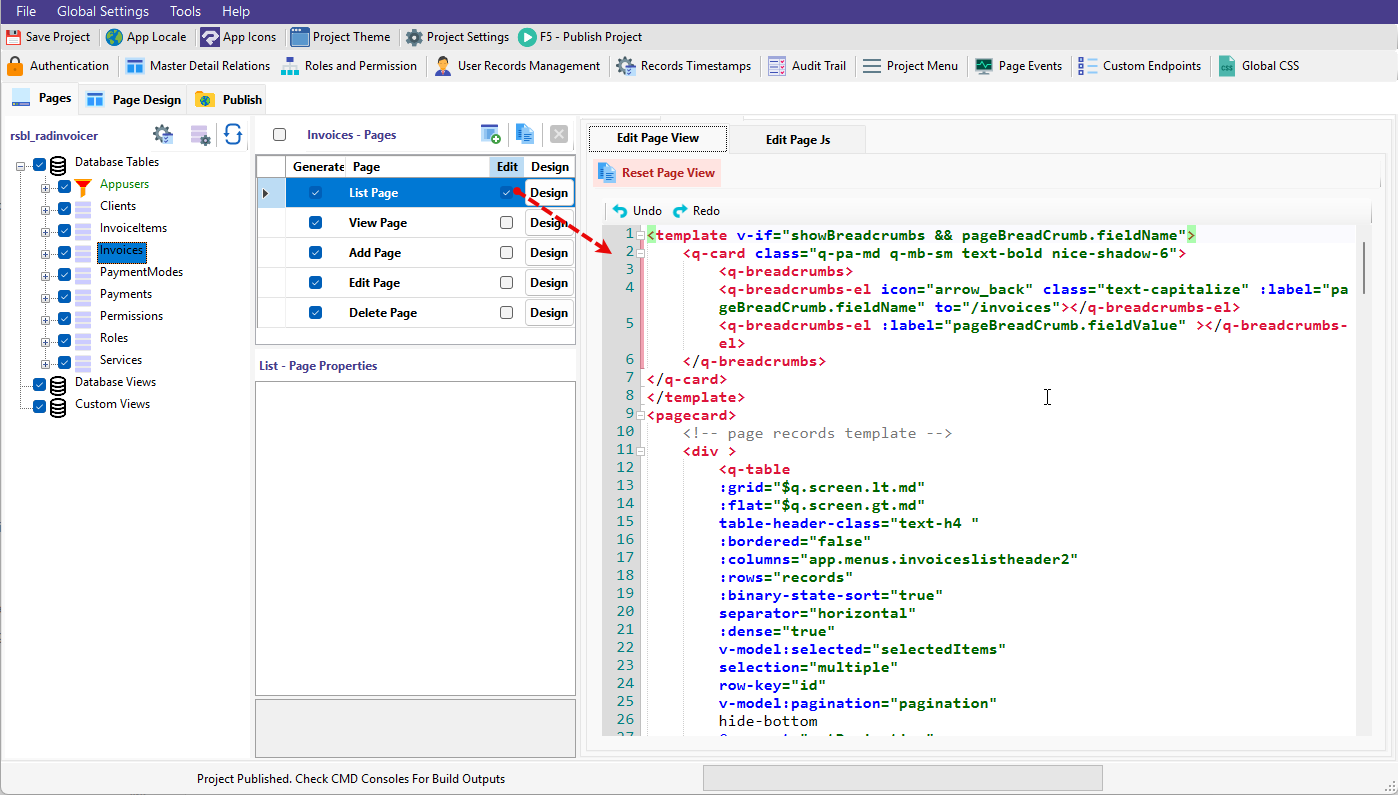
Clicking this transforms the third and fourth columns into a full source code editor.
Note: Once you manually edit the source code, the link between the code and the Page Properties UI is broken.
Resetting: If you need to revert to the Studio's automated logic, click the Reset Page View button. This will re-sync the code with the properties you set in the UI, but all manual code changes will be permanently lost and cannot be recovered.
¶ Design Button:
This opens the page in the Page Design tab. Here, you can build the Page UI using a drag-and-drop interface, add custom sections, and define complex layouts.
Please refer to the Page Design section for more details on how to design your page layout using various page components.
¶ Page Management Action Buttons
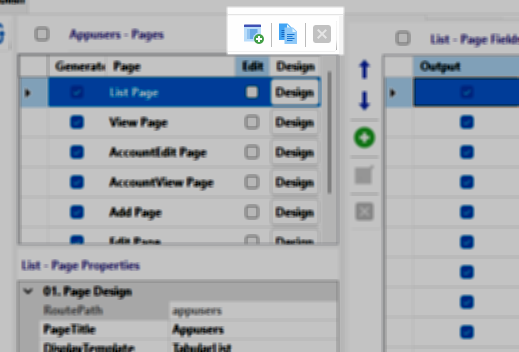
Located at the top of the List of Pages, this toolbar provides controls for extending your application's page structure:
-
Add New Page: Opens a dedicated dialog to create a custom page action.
-
Duplicate Page: Creates an exact copy of an existing page configuration, useful for creating variations of a list or report.
-
Delete Page: Removes the selected page from the application project.
¶ 2. Page Properties (Lower Segment)
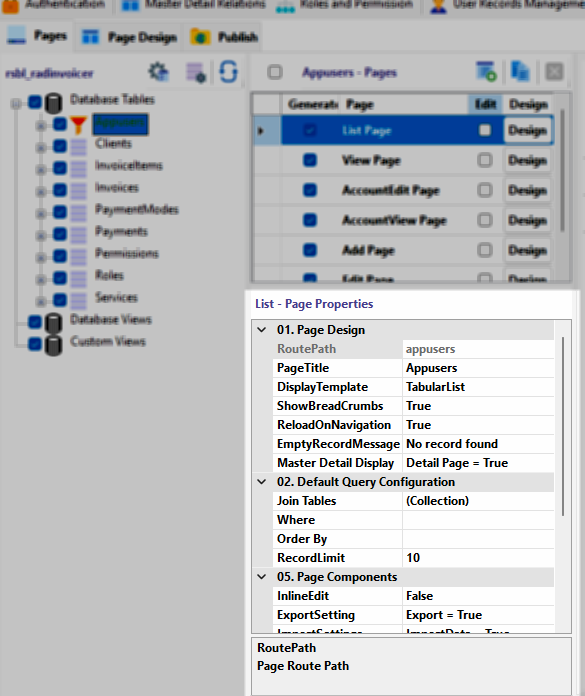
This section allows you to define the behavior the selected page. As you click the page in the list of pages, the properties for that Page are loaded automatically. The page properties are pretty much the same across all the supported UI frameworks, except a few exceptions. Please refer the Page Properties sections for different CRUD pages for further details.